What Is RF Radiation? Frequency, Risks and Exposure
RF radiation is electromagnetic energy that travels in waves, spanning roughly 3 kilohertz to 300 gigahertz the band the FCC…
Almost all modern hospitals and urgent care centers offer free public Wi-Fi for patients and visitors. However, captive login portals, aggressive bandwidth throttling (quality of service), and content filters strictly govern access. While early mobile phones posed electromagnetic interference (EMI) risks to legacy equipment, modern medical devices operate on protected FCC spectrum (WMTS). Wireless restrictions today exist primarily to protect hospital network bandwidth, maintain patient privacy under HIPAA, and prevent interference in specialized zones like MRI suites and intensive care units. If you’re also weighing your own ambient RF exposure in hospitals, that’s a separate and common question worth a closer look.
Most hospitals and outpatient clinics provide free public Wi-Fi to help patients and visitors stay connected with family, manage work, or pass the time during treatment. However, connecting to a hospital Wi-Fi network rarely feels like using your home broadband. Between frustrating splash screens that fail to load, aggressive content filters, and signal dead zones in recovery rooms, hospital internet access comes with strict technical rules and performance limits.
According to healthcare IT data from the American Hospital Association (AHA), while more than 90% of acute care facilities now offer complimentary guest wireless, most throttle guest bandwidth to 1-5 Mbps per device. This throttling is not arbitrary; hospital networks enforce strict Quality of Service (quality of service) protocols that prioritize life-critical patient telemetry, electronic health records (EHR), and clinical voice badges over commercial video streaming and web browsing.
Whether you are trying to connect a laptop to get work done, set up a Nintendo Switch to keep a child entertained, or wondering whether open hospital networks expose your private data, this guide breaks down the rules, technical restrictions, security safeguards, and connection workarounds you need.
Yes, virtually all modern hospitals provide free Wi-Fi for patients, family members, and visitors. Access is treated as a standard patient amenity designed to reduce stress, improve communication with loved ones, and boost patient satisfaction scores (such as HCAHPS ratings). According to analytics from the Healthcare Information and Management Systems Society (HIMSS), more than 95% of acute care hospitals in North America now offer free, unmetered guest wireless access throughout their public facilities.
While you rarely have to pay for hospital Wi-Fi, it does not operate like residential internet. To comply with federal privacy mandates and prevent network congestion, hospitals isolate guest traffic onto a heavily managed, segmented subnet. You can freely browse the web, check email, and message family. Still, the connection comes with built-in speed caps, automated session timeouts, and restricted access to high-bandwidth streaming services.
While guest Wi-Fi is standard, connection strength can vary dramatically by facility type and location inside the building.
Main lobbies, emergency room waiting bays, and outpatient cafeterias generally feature the strongest, most consistent signals. Healthcare IT teams deliberately install high-density commercial access points in these communal zones to handle hundreds of concurrent mobile devices. In contrast, signal strength inside inpatient recovery suites can be surprisingly erratic. Heavy reinforced concrete walls, bathroom plumbing stacks, and dense electrical conduits around patient beds often attenuate Wi-Fi signals if you’re curious how ordinary power infrastructure affects ambient RF levels more broadly, that’s a related read creating dead zones in interior rooms far from hallway transceivers.
Facility size also dictates network reliability:
Hospital Wi-Fi is almost universally free, but it is not unrestricted. While patients and visitors don’t need to provide payment details, healthcare facilities impose strict technical constraints specifically speed throttles, automated session expirations, and mandatory acceptable use policies to conserve network resources for mission-critical medical operations.
Most healthcare facilities intentionally throttle complimentary guest connections to baseline speeds between 2 and 5 Mbps down and 1 Mbps up. According to network performance benchmarks from enterprise wireless provider Aruba Networks, this 2-to-5 Mbps allocation is the industry-standard threshold: it comfortably supports essential communication, including web browsing, secure messaging, and patient portal access, while actively preventing bandwidth-heavy tasks like 4K streaming or large file downloads from saturating the hospital’s primary fiber uplink.
You will also encounter forced “session timeouts,” which disconnect your device and require you to re-authenticate through the captive splash screen every 8, 12, or 24 hours. These expirations serve two vital network administration purposes:
While complimentary access is the standard at public and non-profit facilities, some private specialty clinics and long-term inpatient rehabilitation centers operate a tiered “freemium” model. In these environments, basic browsing remains free. Still, patients staying for extended periods can purchase or request an access voucher for a high-speed tier (typically 15 to 25 Mbps) designed to support remote professional work, cloud backups, and high-definition video conferencing with family.
 Why Is Wi-Fi and Wireless Access Restricted in Hospitals?
Hospitals restrict Wi-Fi and wireless device usage not because standard internet signals shut down medical equipment, but to preserve mission-critical network bandwidth, comply with federal healthcare cybersecurity mandates, and prevent electromagnetic interference in specialized clinical zones. While many patients assume wireless restrictions are a lingering precaution from the early days of mobile technology, modern restrictions stem from network traffic prioritization and patient data protection under HIPAA.
From an engineering perspective, consumer Wi-Fi poses almost zero physical danger to modern medical machinery. Rigorous testing by the U.S. Food and Drug Administration (FDA) and the IEEE confirms that standard Wi-Fi access points transmitting at a low power threshold of 100 milliwatts or less do not disrupt modern life-support systems, ventilators, or infusion pumps certified under international electromagnetic compatibility standard IEC 60601-1-2.
Instead, the true restrictions occur at the network layer. Hospital IT departments implement strict guest Wi-Fi policies because public internet traffic shares the physical fiber lines entering the facility. If thousands of visitors, outpatients, and non-clinical staff were granted unrestricted access to stream high-definition video, the surge in bandwidth consumption could choke hospital administrative tools, digital imaging pipelines (such as PACS servers loading 2GB CT scans), and wireless electronic health record (EHR) workstations. Restricting bandwidth, limiting concurrent connections, and blocking high-capacity data protocols ensures that life-saving hospital operations never compete with recreational internet traffic.
Hospital cell phone bans originated in the early 1990s because early analog and 2G digital handsets emitted high-powered radiofrequency bursts that genuinely interfered with unshielded medical equipment. Today, those blanket facility-wide prohibitions have been replaced with targeted usage policies because both mobile transmission standards and medical hardware manufacturing have undergone major engineering overhauls.
During the 1990s and early 2000s, mobile phones on 2G GSM networks relied on Time Division Multiple Access (TDMA), which transmitted pulsing radiofrequency signals with peak power outputs up to 2 watts. Because medical hardware at the time lacked robust electromagnetic shielding, these high-energy RF pulses could induce unwanted voltage along unshielded sensor cables, leading to erratic dosage rates in intravenous infusion pumps, baseline drift on electrocardiograms (ECGs), and false alarms on mechanical ventilators. A landmark Mayo Clinic study found that older mobile devices produced clinically significant electromagnetic interference in roughly 1.2% of medical device tests when operated within a few inches of vulnerable equipment.
1990s: 2G GSM Handsets (Up to 2W Peak RF Bursts) ──> Unshielded Legacy Pumps & Monitors ──> Voltage Induction & False Alarms
Modern Era: IEC 60601-1-2 Standards (10 V/m Shielding) + Low-Power 4G/5G/Wi-Fi (<0.2W) ──> Safe Operation Across Patient Rooms
The turning point came with the global adoption of the International Electrotechnical Commission (IEC) standard 60601-1-2. This standard required all newly certified medical electrical equipment to maintain electromagnetic immunity against ambient wireless fields up to 10 volts per meter (V/m). Meanwhile, modern 4G LTE, 5G, and Wi-Fi devices were engineered to operate at fractionally lower continuous power levels typically below 0.2 watts automatically throttling their transmission output when signal conditions are stable.
Because cellular phones caused no detectable interference to compliant machinery beyond a standard 3-foot radius, healthcare networks replaced total bans with sensible zone-based policies, allowing patients and families to stay connected from their bedside.
Consumer Wi-Fi and personal smartphones cannot interfere with critical hospital telemetry monitors because they operate on completely separate, federally protected radio frequency bands. While patient and guest Wi-Fi broadcasts across the 2.4 GHz, 5 GHz, and 6 GHz spectrum, vital medical monitors communicate across isolated spectrum bands that consumer wireless chips cannot physically transmit on.
This strict frequency separation results directly from federal regulation. In 2000, after an incident in which an external digital television broadcast knocked out cardiac monitoring equipment at a Texas medical center, the Federal Communications Commission (FCC) established the Wireless Medical Telemetry Service (WMTS) under 47 CFR Part 95. The FCC permanently set aside three dedicated frequency bands strictly for physiological monitoring, including continuous electrocardiograms (ECGs), pulse oximetry, and respiratory tracking:
WMTS Clinical Bands: [ 608–614 MHz ] … [ 1.39–1.43 GHz ] (Locked to Life-Support Telemetry Only)
▲
Multi-GHz Physical Frequency Gap (Zero Overlap)
▼
Consumer Wi-Fi Bands: [ 2.4 GHz ] … [ 5.0 GHz ] … [ 6.0 GHz (Wi-Fi 6E/7) ]In contrast, consumer devices operate gigahertz away from these medical bands. Your smartphone, tablet, or laptop communicates on the 2,400 to 2,483 MHz (2.4 GHz) industrial band, the 5,150 to 5,850 MHz (5 GHz) band, or the newer 5,925 to 7,125 MHz (6 GHz / Wi-Fi 6E and Wi-Fi 7) spectrum. Because a vast physical spectrum gap exists between consumer Wi-Fi transmitters and WMTS channels, co-channel radiofrequency interference between a patient’s mobile phone and an ICU telemetry pack is an engineering impossibility.
To maintain total signal integrity, hospitals register every telemetry transmitter with the American Society for Healthcare Engineering (ASHE) the official FCC-designated frequency coordinator. While hospital policies may still require turning phones to silent or stepping away from acute telemetry wards, these rules prevent audio distractions and room clutter rather than any real threat of radio-wave collision.
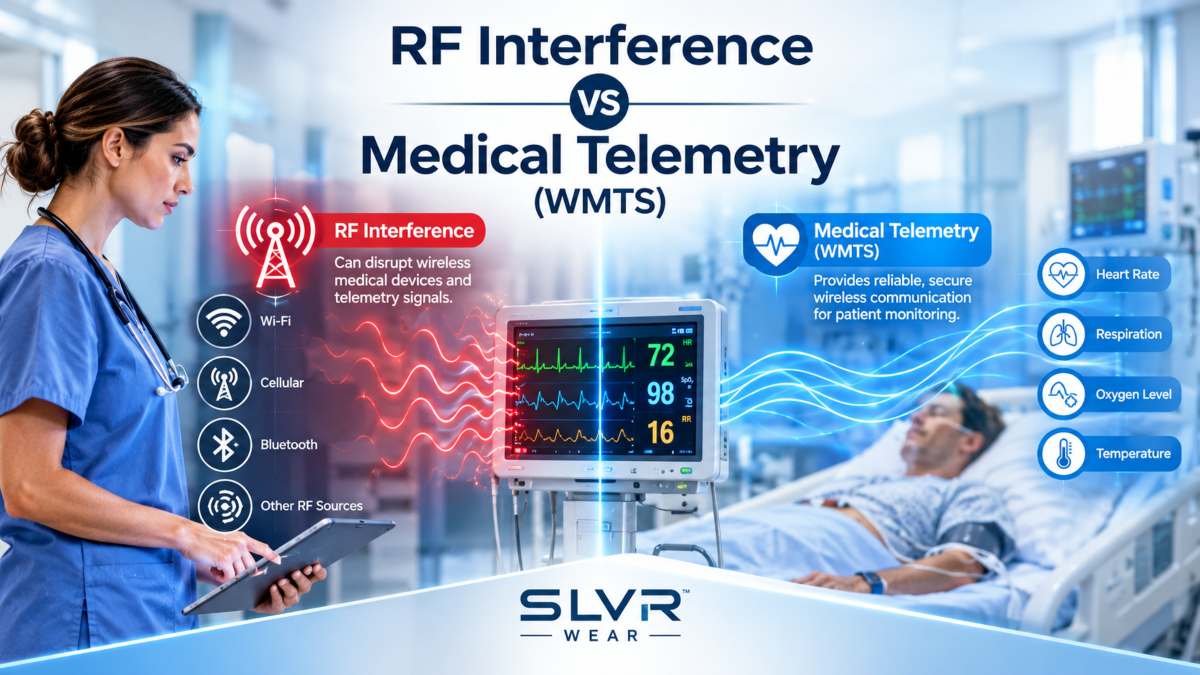 Restricted Zones: Wireless Bans in OR and MRI Suites
Wireless devices are strictly prohibited in operating theaters, MRI suites, and critical care units because these specialized zones contain ultra-sensitive diagnostic machinery where stray radiofrequency signals can degrade clinical imaging or create direct physical hazards. While regular patient rooms and waiting lobbies operate safely with active Wi-Fi, high-acuity treatment areas demand absolute electromagnetic and acoustic control.
The strictest restrictions apply in diagnostic imaging. Under safety standards set by the American College of Radiology (ACR), magnetic resonance imaging facilities are divided into four security tiers, with all consumer wireless devices banned in Zone III (the scanner control room) and Zone IV (the magnet room itself). MRI machines generate diagnostic images by detecting minuscule radiofrequency signals emitted by hydrogen protons in human tissue when exposed to powerful 1.5-Tesla or 3.0-Tesla magnetic fields. To shield these faint biological signals from outside interference, the entire scanner room is encased in a continuous copper or aluminum Faraday shield that attenuates external ambient RF noise by more than 100 decibels (dB).
Operating a smartphone or Wi-Fi device inside an active MRI room bypasses this shielding completely. The device’s local radio transmissions create severe visual artifacts across digital scans rendering diagnostic images clinically unreadable while the scanner’s alternating radiofrequency fields can induce rapid electrical currents through internal phone components, creating severe burn hazards or turning the device into a high-velocity projectile attracted by the superconducting magnet.
ACR MRI Safety Zones:
[ Zone I: Public Access ] ──> [ Zone II: Supervised Waiting ] ──> [ Zone III: Control Area (BANNED) ] ──> [ Zone IV: Magnet Room (SHIELDED FARADAY CAGE) ]
▲ ▲
No Consumer RF Transmitters Extreme Magnetic & Projectile HazardIn Operating Rooms (ORs), Neonatal Intensive Care Units (NICUs), and adult ICUs, wireless device policies are enforced for a mix of technical precision and patient safety:
Commercial 5G cellular service is not restricted in hospitals because of concerns about medical equipment; instead, hospitals manage it through specialized indoor telecommunications architecture. Modern 5G frequencies operate with complete clinical safety around medical hardware, but the physical construction of healthcare facilities makes relying on external cellular towers almost impossible.
The mid-band frequencies that power standard 5G coverage primarily the C-band spectrum operating between 3.7 and 3.98 GHz sit safely clear of hospital equipment. This frequency tier resides well above federally protected Wireless Medical Telemetry Service (WMTS) bands (608 to 614 MHz) and operates completely independent of 2.4 GHz and 5 GHz hospital Wi-Fi networks. Extensive electromagnetic compatibility evaluations by the FDA’s Center for Devices and Radiological Health (CDRH) confirmed that commercial 5G radio signals do not disrupt the operational integrity of ventilators, automated defibrillators, or patient telemetry packs.
The real challenge with 5G inside healthcare facilities is signal attenuation due to the architecture. Dense concrete columns, steel rebar, and radiation-shielded suites in hospital infrastructure actively block high-frequency 5G radio waves. When a smartphone is cut off from an outside cell tower by thick structural walls, the device automatically ramps up its internal transmitter to maximum broadcast power (up to 200 milliwatts) in an aggressive attempt to find a signal this is also part of why some patients choose to turn off 5G in weak-signal areas. This drains patient battery life rapidly and generates unnecessary ambient radio noise inside clinical wards.
Outside Macro Tower (Block by Lead & Low-E Glass) ──X [Hospital Exterior Wall]
│
Indoor DAS Architecture: Fiber Backbone ──> Low-Power Ceiling Microcells (<10 mW) ──> Consistent, Safe 5G Reception
To resolve this issue safely, hospitals install In-Building Distributed Antenna Systems (DAS) and indoor microcells. According to infrastructure data from the Telecommunications Industry Association (TIA), more than 70% of large medical centers now deploy an internal DAS network.
These systems ingest cellular signals from commercial carriers via fiber optics and distribute them through hundreds of low-power ceiling transceivers throughout patient corridors. By bringing the cellular signal directly into the hallway, mobile devices can maintain full reception while operating at their lowest possible power output (often under 10 milliwatts), ensuring reliable cellular calls for patients and staff while keeping radio emissions at absolute minimums.
Hospital Wi-Fi is notoriously slow and cellular reception often drops to zero bars because modern healthcare facilities combine signal-blocking architectural materials with aggressive IT bandwidth throttling. When you step inside a medical center, you enter a fortress engineered with reinforced concrete, steel rebar, and radiation-shielded drywall that physically absorbs radio waves. At the same time, the facility’s internal network deliberately restricts public internet speeds to protect critical hospital systems.
The building structure is the primary cause of dropped calls and missing cellular bars. According to RF attenuation benchmarks published by the National Institute of Standards and Technology (NIST), standard commercial reinforced concrete walls reduce high-frequency wireless signals by up to 35 decibels (dB) per barrier. At the same time, lead-lined diagnostic suites and specialized thermal Low-E window coatings can degrade incoming radio waves by more than 80 dB. Because external cellular towers can’t penetrate these multi-layered barriers, interior patient suites and basement treatment wards become functional radio dead zones unless the facility has invested in dedicated indoor antenna infrastructure.
Even when your phone displays full signal bars connected to the hospital’s public Wi-Fi network, the actual browsing experience can feel sluggish or completely unresponsive. A strong Wi-Fi signal icon merely indicates a solid local radio link between your phone and the hallway access point on the ceiling; it does not guarantee high internet speed. Hospital IT networks place all guest and patient traffic in the lowest-priority tier of their bandwidth queue. When emergency department triage systems, mobile charting carts, and picture archiving and communication systems (PACS) servers demand high network throughput, guest connections are instantly throttled to single-digit megabits or delayed altogether ensuring life-saving patient care never stumbles over an overloaded internet pipe.
 The Architectural Problem: Faraday Cages, Lead Shielding, and Reinforced Concrete
Cellular service and wireless internet drop dead inside hospitals because modern medical facilities are constructed with dense structural shielding that unintentionally transforms the building into a series of interconnected Faraday Fabric. The very materials required to protect patients from radiation, maintain fire safety ratings, and meet strict commercial building codes are fundamentally hostile to wireless radio frequencies.
Diagnostic radiology departments are the most aggressive physical barriers to wireless signals. Rooms housing X-ray machines, CT scanners, and fluoroscopy suites are lined with continuous sheets of 1/16-inch to 1/8-inch pure structural lead to contain ionizing radiation. While essential for protecting patients and staff from radiation exposure, solid sheet lead is completely impenetrable to high-frequency radio waves, reflecting and absorbing virtually 100% of incoming wireless energy. Any patient recovery room or waiting bay sharing a wall with an imaging corridor experiences an immediate drop in mobile reception.
Beyond specialized radiology shielding, the core structural framework of a hospital acts as an electromagnetic sponge:
Hospital Wi-Fi can feel slow and block certain applications because healthcare network administrators enforce aggressive Quality of Service (QoS) traffic prioritization and strict content filtering. These automated firewall rules ensure that mission-critical clinical applications receive guaranteed bandwidth, while public guest internet is deliberately throttled to prevent network congestion.
At the core of hospital network management is packet tagging, which sorts incoming and outgoing data into strict operational queues. According to Cisco Systems healthcare network design standards, clinical communication systems require sub-50-millisecond latency and less than 1% packet loss to function reliably during medical emergencies. To guarantee this standard, hospital IT engineers program their routers with an unyielding priority hierarchy:
Incoming Bandwidth Pipeline
├── [QoS Tier 1: Top Priority] ──> Nurse Badges, VoIP, Mobile EHR Workstations (Guaranteed Latency <50ms)
├── [QoS Tier 2: Mid Priority] ──> PACS Imaging Transfers, Automated Pharmacy Cabinets
└── [QoS Tier 3: Scavenger Class] ──> Patient & Guest Wi-Fi (Throttled to 1–5 Mbps per device, drops first under load)
To prevent a single visitor from exhausting the shared guest connection, network controllers enforce strict per-device bandwidth caps typically restricting each user to between 1 and 5 Mbps down and 1 Mbps up. This provides sufficient throughput to read the news or message family, but deliberately creates buffering if you attempt to stream 4K video.
At the same time, enterprise web filters automatically blacklist high-bandwidth and high-risk traffic. Peer-to-peer file sharing (BitTorrent), online multiplayer gaming servers (PlayStation Network, Xbox Live, Steam), and unverified file-hosting hubs are routinely blocked at the firewall level. Furthermore, hospitals strictly filter adult domains, gambling portals, and unverified VPN protocols to maintain a family-appropriate public space and insulate the facility against distributed malware threats.
Hospital guest Wi-Fi is safe for routine web browsing, social media, and streaming. Still, it carries the same cybersecurity vulnerabilities as an open network at an airport or coffee shop. While hospitals must comply with rigorous federal cybersecurity standards for clinical operations, public guest networks are intentionally left open and unencrypted so patients and visitors can connect easily without complex security certificates.
A widespread misconception among patients is that the Health Insurance Portability and Accountability Act (HIPAA) legally protects personal internet browsing on hospital Wi-Fi. In reality, HIPAA regulations (specifically 45 CFR Part 160 and Part 164) apply exclusively to Protected Health Information (PHI) processed on the hospital’s private clinical and administrative subnets. The guest wireless network is a separate, untrusted environment that receives no HIPAA protections; your personal internet traffic is governed solely by the standard terms of service displayed on the initial login screen.
According to public network vulnerability assessments published by the National Institute of Standards and Technology (NIST Special Publication 800-124), open wireless local area networks (WLANs) lack layer-2 over-the-air encryption. Without a network-level WPA3 password, data packets broadcast between your smartphone and the hospital’s ceiling access point are physically airborne and unencrypted. While modern internet security protocols like HTTPS and TLS 1.3 protect the contents of most passwords and financial forms from being read directly, any bad actor connected to the same hospital guest subnet can still observe device MAC addresses, monitor the unencrypted domain names (DNS queries) you visit, and attempt local network exploitation against unprotected devices.
 The Risks of Open Healthcare Guest Networks
Connecting to an open hospital Wi-Fi network exposes personal devices to over-the-air packet sniffing, rogue access points, and credential interception. Because hospital guest networks prioritize convenience over authentication, they omit the rigorous WPA3 or 802.1X enterprise encryption used on clinical medical networks, allowing any nearby device to listen to raw wireless transmissions.
The lack of over-the-air encryption is the foundational vulnerability of guest Wi-Fi. On secure private networks, each user session is protected by unique mathematical encryption keys that scramble radio frames between the device and the ceiling router. On open hospital networks, data packets fly through the air completely unencrypted at the physical and data link layers. While modern HTTPS encryption shields the passwords you submit to verified banking sites, unencrypted metadata including device hardware identifiers (MAC addresses), unencrypted mobile app background calls, and plain-text DNS requestscan be captured by anyone in the waiting room running basic packet-sniffing utilities like Wireshark.
Legitimate Hospital Router (Open Guest SSID) ───\
├──> Unsuspecting Patient Device
Malicious Rogue Hotspot (“Hospital_Free_Guest”) ──/ (Tricked via higher signal strength or clone SSID)
│
▼ (Captures credentials & DNS metadata before routing to internet)
Attacker Laptop Running Packet Sniffer
Healthcare facilities are uniquely vulnerable to “Evil Twin” access point attacks. Cybercriminals can sit in a hospital cafeteria or parking lot with a low-cost, portable wireless transceiver broadcasting a forged network name such as Hospital_Guest_Free or Patient_HighSpeed_Wi-Fi.
Because smartphones are programmed to automatically connect to open networks with familiar names or stronger radio signals, your device may silently connect to the attacker’s machine instead of the hospital’s authentic hardware. According to public wireless threat intelligence from the Cybersecurity and Infrastructure Security Agency (CISA), rogue access point attacks remain a primary vector for credential theft on public networks.
Furthermore, attackers exploit the universal expectation of hospital captive login portals to execute Man-in-the-Middle (MitM) attacks. By intercepting your initial browser connection, a rogue device can display a counterfeit splash screen that mimics the hospital’s branding. Unsuspecting patients already preoccupied with medical stress are prompted to enter their email addresses, phone numbers, or social media logins under the false pretense of “verifying patient room access,” inadvertently handing sensitive personal credentials directly to bad actors.
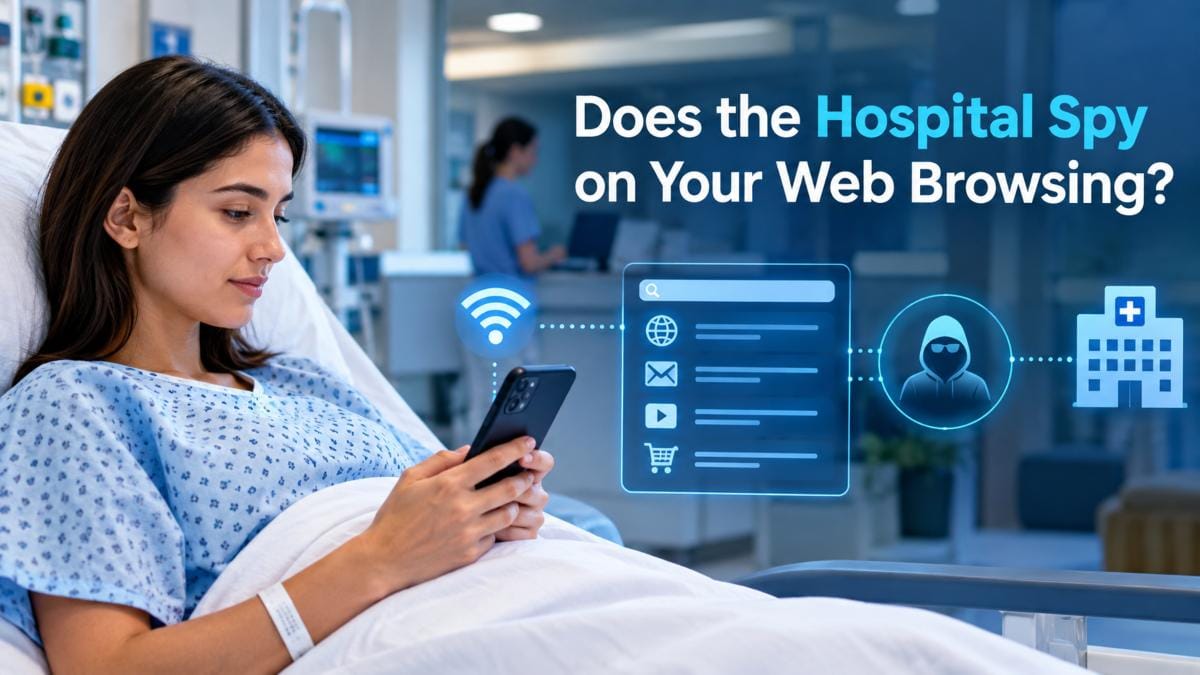
Hospital IT staff don’t read your private messages or track individual keystrokes, but their network firewalls automatically log every website domain you connect to while on their Wi-Fi. Healthcare network administrators maintain automated logs of public traffic solely to prevent malware infections, enforce bandwidth rules, and shield the facility from legal liability, not to spy on personal patient affairs.
Because your device must ask the hospital’s router to resolve web addresses, the network firewall captures high-level connection metadata. Specifically, administrators can see the domain names you visit (such as nytimes.com, reddit.com, or chase.com), the timestamp of your connection, the volume of data downloaded, and your device’s hardware identifier (MAC address). If you visit an outdated website running unencrypted HTTP rather than modern HTTPS, the firewall can also see the exact webpage path and any unencrypted text submitted on that page.
What Hospital IT Logs: [ Device MAC / IP ] ──> Visited: “webmd.com” (Domain Only) ──> Bandwidth Used: 45 MB
│
What Remains Encrypted: [ Protected by TLS 1.3 ] ──X Cannot See: Specific Symptoms Searched, Passwords, or Results
What Messaging Apps Hide: [ End-to-End Encryption ] ──X Cannot See: WhatsApp / iMessage / Signal Texts, Photos, or Calls
However, hospital IT cannot see what you are actually doing on secure websites. According to the Google Transparency Report, more than 95% of all web traffic across modern browsers is now encrypted via HTTPS (TLS 1.3). This cryptographic protocol establishes an encrypted tunnel directly between your browser and the remote web server.
As a result, hospital administrators cannot view your passwords, read banking transactions, view the specific search queries you type into Google, or see which individual articles you read. Furthermore, communications sent across end-to-end encrypted messaging applications including Apple iMessage, WhatsApp, FaceTime, and Signal are completely indecipherable to network administrators. Even if hospital staff inspected the raw data packets moving through their switches, your text conversations, voice calls, and photos appear as randomized, unbreakable cryptographic code.
 4 Essential Security Steps Before You Connect
Securing your personal device before connecting to an open hospital Wi-Fi network requires taking a few quick precautions to encrypt your data stream and lock down open sharing ports. While healthcare guest networks lack built-in layer-2 encryption, adopting four fundamental security practices eliminates virtually all common public Wi-Fi attack vectors.
A personal Virtual Private Network is the single most effective defense against public Wi-Fi interception. Utilizing modern, lightweight protocols such as WireGuard or OpenVPN, a reputable VPN creates an impenetrable cryptographic tunnel between your device and a secure external server. Even if an attacker on the hospital network intercepts your airborne radio packets or operates a rogue “Evil Twin” access point, all data moving through the tunnel appears as indecipherable noise.
Practical Tip: Always connect to the hospital Wi-Fi and complete the browser’s captive portal agreement first, then activate your VPN immediately after your device confirms internet connectivity, as active VPNs frequently block captive splash screens from loading.
When your laptop or phone connects to a network, it may broadcast its presence to nearby devices unless you explicitly configure it for public access. If you are on a Windows laptop, set your network profile to “Public Network,” which automatically disables Network Discovery and File and Printer Sharing. On macOS, navigate to your sharing settings and turn off File Sharing. For iPhone and iPad users, switch AirDrop to “Contacts Only” or “Receiving Off” so unauthorized users in crowded waiting areas cannot ping your device or view your personal device name.
Modern browsers automatically alert you when a website fails to offer a verified, encrypted Transport Layer Security (TLS) certificate. If your browser displays a security interstitial stating “Your connection is not private” or flags an invalid SSL certificate while you are on hospital Wi-Fi, close the tab immediately. These warnings frequently indicate that a captive portal proxy or an active Man-in-the-Middle attacker is attempting to intercept your encrypted connection.
According to data from the annual Verizon Data Breach Investigations Report (DBIR), credential harvesting on untrusted networks remains a primary gateway for unauthorized account takeovers. While HTTPS protects password transmission on legitimate websites, shared public subnets and ambient distraction make public hotspots an unnecessary risk for financial management. If you need to check bank balances, authorize wire transfers, or access tax records. At the same time, at the hospital, temporarily turn off Wi-Fi and complete the transaction over your mobile carrier’s 4G or 5G connection.
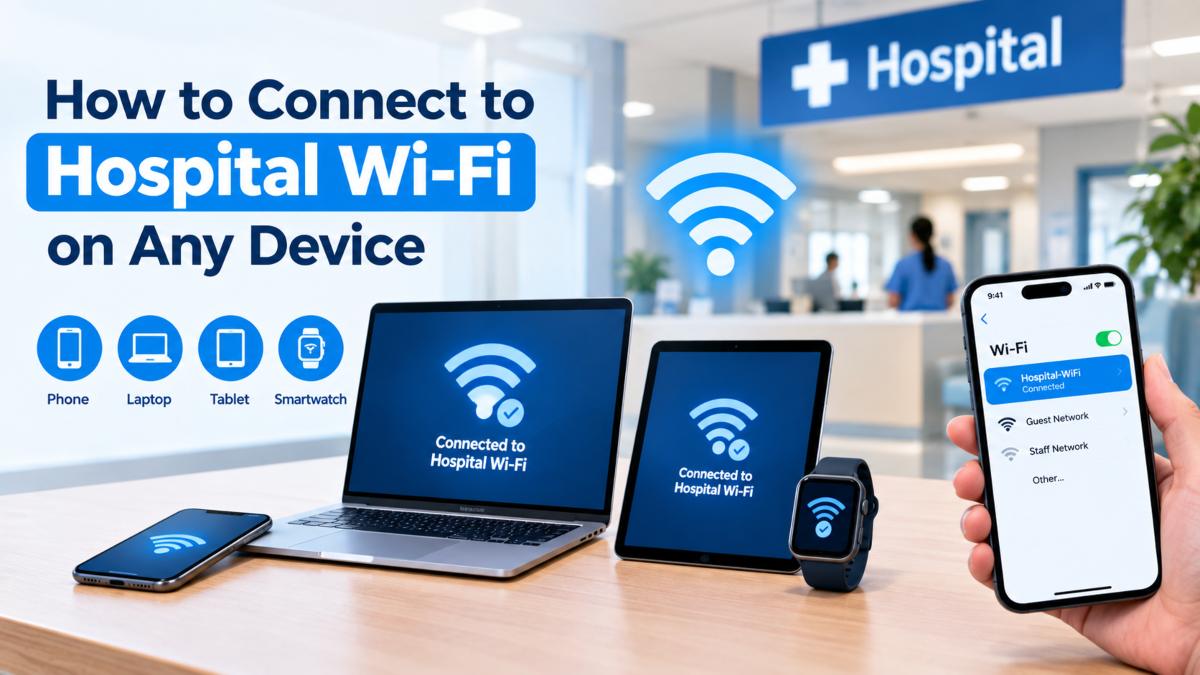
To connect to hospital Wi-Fi on any smartphone, tablet, or laptop, open your device’s Wi-Fi settings, select the facility’s official public guest network name (SSID), and accept the terms of service on the automated captive portal splash screen. Unlike residential networks, hospital guest Wi-Fi rarely requires a pre-shared password; instead, an automated web landing page authenticates and authorizes your connection.
According to technical deployment data from the Wi-Fi Alliance, more than 85% of healthcare facilities manage guest access using captive portal architecture. When your device first links to the open access point, the hospital’s network gateway intercepts your initial web connection and redirects your browser to an internal authentication server. Once you check the box agreeing to the facility’s acceptable use policy or enter your patient room number, the gateway unlocks your device’s MAC address and grants immediate public internet access.
While this process is designed to be frictionless, modern mobile operating systems that prioritize security (such as private MAC addressing and encrypted DNS) can sometimes prevent the splash screen from launching automatically. Understanding the exact connection sequence across platforms helps you connect quickly and avoid common handshake errors.
 Standard Connection Steps for iPhone, Android, and Laptops
Connecting an iPhone, Android phone, Windows laptop, or MacBook to hospital Wi-Fi follows a four-step authentication sequence that takes under thirty seconds to complete. The process requires associating with the unencrypted public network, completing the web-based terms of service prompt, and establishing a verified network lease.
[ Step 1: Select Guest SSID ] ──> [ Step 2: Auto Captive Prompt ] ──> [ Step 3: Accept Terms / SMS Code ] ──> [ Step 4: Full Internet Access ] (Avoid Staff_Secure SSIDs) (Native web sheet pops up) (Reclaims IP & starts session) (Test on external website)If the hospital Wi-Fi login screen fails to pop up, modern security protocols specifically HTTP Strict Transport Security (HSTS) or third-party DNS resolvers likely block the hospital router from intercepting your web requests. You can immediately force the captive portal to appear by requesting a dedicated unencrypted web address or typing the local network gateway IP directly into your browser’s address bar.
Modern web browsers are engineered to block connection hijacking. When you connect to Wi-Fi and try to load an encrypted website like google.com or amazon.com, your browser demands a verified SSL/TLS certificate that matches that specific domain. Because the hospital’s local router intercepts that request to show you its Terms of Service, the browser flags the redirection as a potential security attack and halts the page, leaving you stuck without internet.
Failed Captive Redirect: Browser requests “https://google.com” ──> Hospital Gateway Intercepts ──> Browser Blocks as SSL Hijack
│
The “NeverSSL” Fix: Browser requests “http://neverssl.com” ──> Hospital Gateway Intercepts ──> Instant Login Portal Loads!
To bypass this security lock and instantly trigger the hospital splash screen, open your browser and navigate to one of these standardized, unencrypted probe URLs:
If the page still won’t load, check your device’s DNS and network settings. According to enterprise wireless diagnostic benchmarks from Cisco Systems, more than 40% of public Wi-Fi authentication failures stem from client-side custom DNS configurations. If your smartphone or laptop uses private DNS resolvers like Google DNS (8.8.8.8), Cloudflare (1.1.1.1), or DNS-over-HTTPS (DoH), your device bypasses the hospital’s local DNS server. Because the local server cannot intercept the query, it cannot display the splash screen. Temporarily set your DNS settings back to “Automatic / DHCP” and turn off any active VPN apps until you have accepted the portal terms.
Finally, clear any lingering network conflicts from previous Wi-Fi connections. On iPhone or Android, toggle Airplane mode on for ten seconds to clear stale network caches; on Windows laptops, open Command Prompt and run ipconfig /flushdns, then ipconfig /renew to establish a fresh IP lease with the hospital access point.
Connecting a Nintendo Switch, Amazon Firestick, or gaming console to hospital Wi-Fi is notoriously difficult because these “headless” entertainment devices lack a standalone web browser to load the hospital’s captive portal login screen. However, you can reliably connect your console using one of three proven network workarounds: unlocking the console’s hidden authentication browser, routing through a smartphone or laptop Wi-Fi hotspot, or cloning your authenticated device’s MAC address.
For patients and families facing multi-day inpatient stays or lengthy pediatric recovery periods, setting up a gaming console provides essential comfort and emotional relief. According to clinical data published by the American Academy of Pediatrics (AAP), access to familiar video games and interactive digital media significantly reduces perceived stress and situational anxiety in pediatric and adolescent inpatient settings. Despite this clinical value, hospital IT architectures are fundamentally designed around enterprise workstations and smartphones, leaving gaming hardware stranded at the initial connection handshake.
The underlying issue is that gaming platforms and streaming sticks (including Roku, Chromecast, and Nintendo Switch) run lightweight, sandboxed operating systems. When the device connects to the open hospital network, it sends an automated background ping to test for an active internet connection. When the hospital’s firewall intercepts that ping and attempts to redirect the console to an interactive terms-of-service webpage, the console’s stripped-down network stack cannot render the HTML redirect, triggering a generic “Network connection failed” error. Overcoming this barrier requires manually providing the browser interface the device lacks or letting another pre-authenticated device handle the digital handshake.
Gaming consoles and streaming sticks fail to connect to hospital Wi-Fi because their operating systems deliberately omit or restrict user-accessible web browsers, preventing them from displaying the hospital’s captive portal agreement. Without a functioning browser interface to render and accept the facility’s mandatory Terms of Service, the hospital firewall flags the console as an unauthorized endpoint and drops all outbound network traffic.
This limitation is an intentional design choice by hardware manufacturers, not an oversight. Video game companies including Nintendo, Sony, and streaming hardware makers sandbox or remove web browsers from their consumer devices to prevent security exploits. Historically, unpatched vulnerabilities in consumer web engines (such as WebKit) were the primary attack vector hackers used to execute arbitrary code, jailbreak console firmware, and run pirated software. By eliminating open web browsers, manufacturers secure their platforms, but they inadvertently lock users out of public wireless networks that require a browser-based authentication handshake.
Smartphone Behavior: Connects ──> Receives Captive HTTP 302 ──> Spawns Native WebKit Sheet ──> Accepts Terms (ONLINE)
│
Gaming Console Behavior: Connects ──> Receives Captive HTTP 302 ──> No Native Browser Available ──> “Error: Could Not Connect”
The underlying technical disconnect involves network communication protocols. While smartphones and laptops support the Internet Engineering Task Force (IETF) Captive Portal architecture (RFC 8952) automatically detecting network redirect headers and launching a native captive assistant consoles rely on basic automated server pings.
For example, when a Nintendo Switch attempts to connect to Wi-Fi, it quietly queries a remote testing domain (conntest.nintendowifi.net) expecting a simple confirmation code. When the hospital’s enterprise gateway intercepts that query and sends back an HTML splash screen instead, the console’s network stack misinterprets the response as a corrupted transmission, terminates the connection, and displays an error code.
You can connect a Nintendo Switch to hospital Wi-Fi by unlocking the console’s hidden internal web browser using a temporary custom DNS address. While the Nintendo Switch hides its browser applet from the main home menu, redirecting its initial connection test through a public proxy DNS forces the console’s internal browser to launch, allowing you to view and accept the hospital’s captive portal terms.
[ System Settings > Internet ] ──> [ Set Primary DNS to 045.055.142.122 ] ──> [ Connect: “Registration Required” ] │Follow this step-by-step sequence to bypass the captive portal on your Nintendo Switch:
The simplest and most reliable way to connect a gaming console or streaming stick to hospital Wi-Fi is to route its traffic through a laptop or smartphone acting as a local wireless bridge. By completing the hospital’s captive portal login on a device equipped with a standard web browser, you can rebroadcast that authorized internet connection as a private, password-protected Wi-Fi hotspot that your console can join in seconds.
This bridging technique leverages the “Wi-Fi Sharing” capabilities built into modern mobile operating systems. While traditional mobile hotspots burn through your cellular carrier data plan, many contemporary Android smartphones (including recent Samsung Galaxy and Google Pixel models) and Windows laptops feature Dual-Band Simultaneous (DBS) network adapters. These dual-band chips can receive the hospital’s Wi-Fi signal on one radio frequency (such as 5 GHz) and simultaneously rebroadcast that same connection on another frequency (such as 2.4 GHz) as a private local network.
Hospital Guest Wi-Fi (Captive Portal Handshake)
│
▼ (Authenticates via Chrome / Edge)
Windows Laptop or Android Phone
│
▼ (Rebroadcasts encrypted WPA2 Private Hotspot)
Nintendo Switch / Firestick / PS Portal (Instant Online Access)
To set up a local wireless bridge using a Windows laptop:
Note for Apple users: Apple iOS devices do not support simultaneous Wi-Fi-to-Wi-Fi repeating; activating Personal Hotspot on an iPhone automatically switches the data stream to your mobile carrier’s cellular plan. If you are in a hospital with adequate 4G or 5G reception, utilizing your iPhone’s cellular hotspot remains a seamless alternative for powering a console through long inpatient evenings.
If your gaming console, Apple TV, or streaming stick cannot load the hospital splash screen and cannot connect to a mobile hotspot, you can bypass the captive portal entirely using MAC address cloning. Because hospital enterprise firewalls authenticate guest devices by recording their physical 48-bit Media Access Control (MAC) address rather than requiring a persistent account login, tricking the network gateway into whitelisting your console’s hardware address grants immediate internet clearance.
When you accept the Terms of Service on a laptop or smartphone, the hospital’s wireless access controller (such as Cisco Identity Services Engine or Aruba ClearPass) writes your device’s 12-character hexadecimal hardware address directly to an authorized client table. The firewall then lets all incoming and outgoing data packets matching that hardware signature pass unhindered for the duration of the DHCP lease (typically 12 to 24 hours). By temporarily assigning your console’s MAC address to your laptop, you can complete web authentication on the console’s behalf.
Hospital Guest Wi-Fi (Captive Portal Handshake)
│
▼ (Authenticates via Chrome / Edge)
Windows Laptop or Android Phone
│
▼ (Rebroadcasts encrypted WPA2 Private Hotspot)
Nintendo Switch / Firestick / PS Portal (Instant Online Access)
Follow these technical steps to clone and authenticate your gaming device:
Hospital Wi-Fi policies for nurses, physicians, and administrative staff enforce strict operational separation between personal smartphones and internal medical networks to protect patient confidentiality. While healthcare employees are generally permitted to use personal devices during breaks, facility regulations strictly prohibit workers from connecting personal phones or laptops to secure clinical subnets or transmitting patient information over unapproved wireless channels.
Federal law mandates these strict wireless restrictions. Under the Health Insurance Portability and Accountability Act (HIPAA) Security Rule and Joint Commission clinical communication standards, healthcare institutions face mandatory investigations and substantial federal fines often reaching six- and seven-figure penalties if unauthorized mobile devices compromise Protected Health Information (PHI). According to enforcement metrics published by the U.S. Department of Health and Human Services (HHS) Office for Civil Rights, unauthorized personal device usage and unencrypted data transmission remain primary contributors to healthcare data breach settlements.
To maintain continuous regulatory compliance, hospital IT architectures deploy a two-tier wireless policy for employees:
Beyond technical access rules, hospital wireless policies for nurses govern professional conduct. Healthcare workers are strictly barred from recording audio, taking photographs, or discussing patient cases on personal devices anywhere within clinical corridors. Violating wireless device policies even inadvertently posting a casual break-room photo that captures a patient chart or room monitor in the background constitutes a critical HIPAA violation that can result in immediate disciplinary action, termination, and reporting to the state licensing board.
Hospitals protect patient medical records and life-saving equipment by implementing Virtual Local Area Network (VLAN) segmentation, which logically isolates clinical hardware from public guest Wi-Fi. Although a nurse’s mobile charting tablet and a visitor’s smartphone connect to the same physical access point on the ceiling, the data packets are sorted into separate virtual networks that cannot interact with or detect each other.
The IEEE 802.1Q networking standard governs this architectural separation. Modern enterprise access points broadcast multiple virtual service set identifiers (SSIDs) simultaneously, routing incoming traffic through discrete cryptographic tunnels:
Physical Ceiling Access Point
├── [VLAN 10: Untrusted Public Guest] ──> Client Isolation Enabled ──> Routed Directly to External Web (Zero LAN Access)
└── [VLAN 50: Protected Clinical Net] ──> WPA3-Enterprise 802.1X ──> Internal EHR, PACS & Medication Dispensers
This segmentation is the primary technical safeguard required under the HIPAA Security Rule (45 CFR § 164.312), which legally obligates healthcare covered entities to prevent unauthorized electronic access to Protected Health Information (ePHI). According to network penetration audits conducted under NIST healthcare cybersecurity guidelines, proper VLAN segmentation eliminates more than 80% of lateral network attack vectors. If a visitor inadvertently connects a malware-infected laptop to the public guest Wi-Fi, the firewall’s strict segmentation rules make it structurally impossible for that malicious code to traverse the network, discover medical monitors, or compromise electronic health records.
Healthcare workers who use personal smartphones or tablets for clinical workflows must enroll their devices in enterprise Mobile Device Management (MDM) software before connecting to internal hospital systems. Hospital IT departments require this administrative enrollment to create an encrypted, sandboxed workspace on personal hardware, ensuring sensitive patient health records never mix with personal consumer applications.
Through MDM platforms such as Microsoft Intune, Jamf Pro, or VMware Workspace ONE, hospital systems enforce mandatory digital containerization on employee devices. This architecture partitions the physician’s or nurse’s personal phone into two completely isolated environments: a personal side for personal photos, calls, and private apps, and a cryptographically secured corporate container that houses clinical communication tools (such as Epic Haiku, Cerner CareAware, or Vocera).
Under hospital BYOD policies, enrolled devices must comply with rigorous security baselines:
Personal Smartphone (BYOD Enrolled via MDM)
├── [Personal Partition] ──> Personal Photos, Social Media, Non-Clinical Apps (Private & Untracked)
│ ▲ (Cryptographic Firewall: No Copy/Paste or Data Sharing)
└── [Sandboxed Container] ──> Epic Haiku, Clinical VoIP, Secure Messaging (Encrypted, Remote-Wipe Capable)
The MDM profile enforces mandatory six-digit PINs or biometric facial recognition, blocks screen recordings within clinical applications, disables clipboard copying of patient notes to personal email, and grants IT administrators the authority to remotely wipe the clinical partition if the phone is reported lost or stolen.
Crucially, hospital wireless policies strictly prohibit “network bridging.” Clinical staff are strictly barred from using personal mobile hotspots, unapproved USB Wi-Fi dongles, or Bluetooth tethering to link unauthorized personal laptops to hospital workstations or bedside medical monitors. According to the Verizon Mobile Security Index, compromised or unmanaged mobile endpoints are implicated in more than 45% of healthcare enterprise security incidents. Maintaining an uncompromising barrier between unvetted personal hardware and the hospital’s primary network ensures outside malware can never establish an unmonitored backdoor into sensitive patient care environments.
Hospital Wi-Fi easily accommodates lightweight daily communications like sending text messages and reading the news. Still, it is deliberately throttled to restrict high-bandwidth video streaming, competitive multiplayer gaming, and non-standard corporate VPN tunnels. Knowing which digital activities work reliably and which hit institutional firewalls helps patients and remote-working family members plan before an extended hospital stay.
According to global network performance analytics from Ookla, the average public healthcare Wi-Fi connection delivers downstream speeds between 2 and 5 Mbps, with network latency regularly exceeding 85 milliseconds. While this bandwidth tier easily supports text communication and static web browsing, it falls well short of the technical thresholds required for real-time multiplayer gaming which demands sub-40ms latency and open NAT routing or multi-participant HD video conferencing.
The performance matrix below outlines what you can realistically expect across common online activities, the specific IT bottlenecks you will encounter, and the most effective workarounds:
| Online Activity | Typical Performance | Built-In Bottlenecks & IT Restrictions | Recommended Workaround |
|---|---|---|---|
| Basic Browsing & Email | Excellent | Virtually none. Lightweight HTML and static images pass through firewalls unimpeded. | Connect directly via the standard public guest portal. |
| Messaging (iMessage, WhatsApp) | Excellent | Minimal. End-to-end encrypted messaging uses negligible bandwidth and low-priority sockets. | Connect directly; ensure cellular data fallback is enabled in phone settings. |
| Video Streaming (Netflix, YouTube) | Fair to Poor | Firewalls throttle video streams to standard definition (480p/720p); high-traffic domains may be blocked entirely during peak hours. | Pre-download movies, podcasts, and shows offline to your tablet or phone before hospital admission. |
| Video Calling (FaceTime, Zoom) | Inconsistent | High latency, jitter, and packet loss cause audio stutter and freezing during peak afternoon visiting hours. | Schedule calls during off-peak hours (early morning/late evening) or position yourself near exterior windows on cellular 5G. |
| Online Gaming (Nintendo Switch, PS5) | Blocked or High Ping | Strict Symmetric NAT (Type D or F), blocked incoming UDP matchmaking ports, and high ping make multiplayer lobbies inaccessible. | Switch to offline single-player titles, or tether your console to a personal smartphone cellular hotspot. |
| Remote Work / VPN Access | Moderate | Hospital enterprise firewalls frequently block custom IPsec, L2TP, and UDP-based corporate VPN tunnels to protect the perimeter. | Configure your corporate VPN client to connect via standard SSL/TLS over TCP Port 443 (which mimics HTTPS web traffic). |
To avoid frustration during an inpatient stay, prepare your devices before arriving at the hospital. Download an offline library of movies, audiobooks, and offline games onto your tablet or laptop. If you must conduct professional video conferences or handle remote work, verify with your IT department that your corporate VPN supports SSL/TLS tunneling over Port 443, ensuring your work connection passes through the hospital’s web traffic filters without interruption. And if you’re prepping a bag for an extended stay, it’s also worth a quick look at reducing RF exposure at home before you go, since the same connectivity dead zones and signal-dense environments come up in both settings.
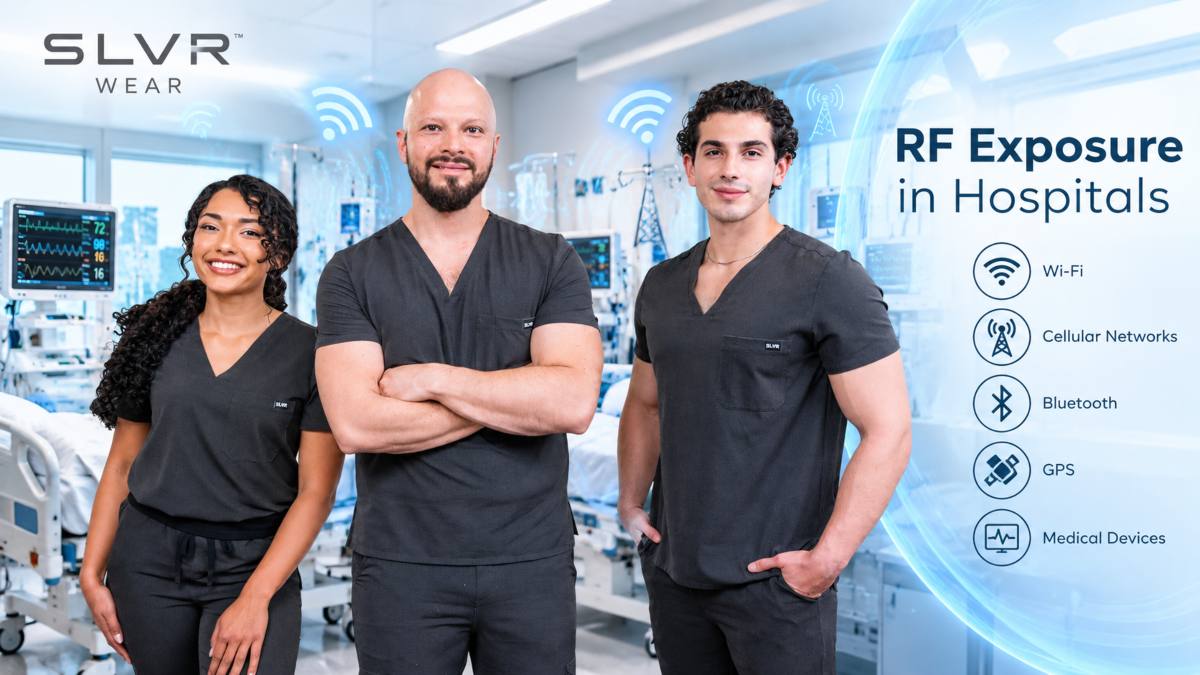
Long waiting-room stretches, overnight stays, and recovery-room downtime are also when many patients and family members start thinking about their own signal environment, not just the hospital’s. A few SLVR Wear™ products come up naturally in this context, as an option rather than a requirement:
If you’re weighing options more broadly, our RF blockers overview and guide to RF blocking material cover how silver-fiber shielding fabric works and what it’s rated for.
Yes, patients and visitors can generally bring personal laptops into waiting areas, outpatient clinics, and inpatient rooms. You can use them for work, online classes, communication, or entertainment during a hospital stay. For convenience, bring a long charging cable and avoid placing the laptop on clinical carts or sterile meal trays. Use a lap desk or clean, designated surface instead.
Hospital Wi-Fi may block websites using network firewalls and content-filtering systems to protect users and clinical network resources. Commonly restricted categories include torrenting, high-bandwidth streaming, gaming, phishing sites, malware, gambling, and adult content. These controls help reduce security risks, conserve bandwidth, and maintain appropriate use of the guest network.
Repeated Wi-Fi disconnections can sometimes be related to device settings, captive portals, signal strength, or MAC address randomization. Check the hospital network’s Wi-Fi settings and make sure you completed the captive portal correctly. If the problem continues, try reconnecting to the network, restarting Wi-Fi, or contacting the hospital’s guest-network support. Avoid disabling privacy features unless the hospital specifically recommends doing so.
Modern pacemakers and ICDs are designed and tested for electromagnetic compatibility, including exposure to common wireless signals. Hospital Wi-Fi normally operates on 2.4, 5, and 6 GHz bands, while medical telemetry may use different frequency ranges. However, interference depends on the specific device and environment, so follow your medical device manufacturer’s guidance. If you notice unusual device behavior, move away from the suspected source and contact medical staff immediately.